Graycare (graycare.net) is a participant in the Amazon Services LLC Associates Program, an affiliate advertising program designed to provide a means for us to earn fees by linking to Amazon.com and affiliated sites. Learn More

When you’re trying to watch Netflix the FireTV Stick #ad is plugged into the HDMI of your TV, and you’ve got the FireTV remote in your hand - This is how to do it.
Netflix calls it the Amazon Streaming Stick. Amazon calls it the FireTV.
When you’re done, and the “Amazon Streaming Stick” will be enabled on your Netflix app, so you can watch Netflix on your FireTV - anything you like!
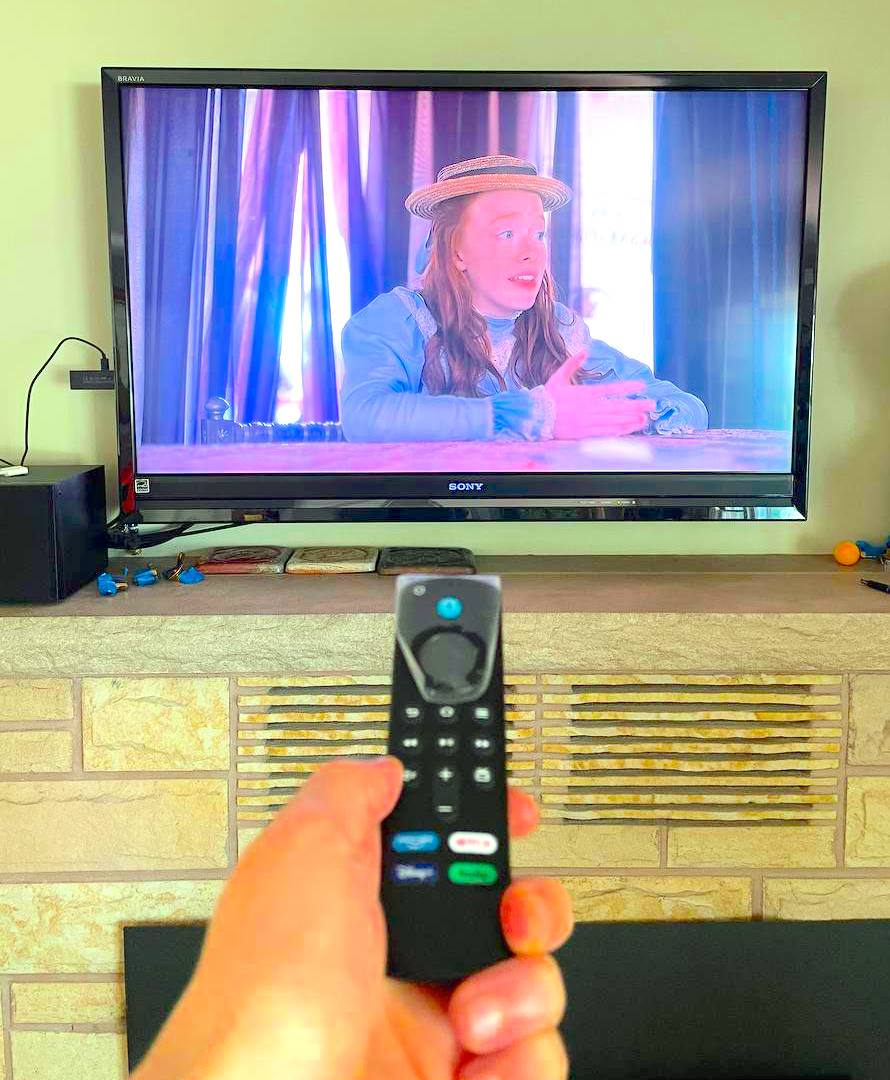
Here’s a step-by-step guide how to do it:
Connect the Fire TV Stick to your TV's HDMI port and hold the Fire TV remote in your hand.
Ensure that your phone or computer is connected to the internet, and make sure your Fire TV is also connected to the internet.
Next get that FireTV remote in hand.
Open the Netflix app on your Fire TV by tapping the Netflix button on the Fire TV remote. Wait for the app to load.
Hopefully, the first Netflix screen you see on your TV has a big SIGN IN or LOG IN place for you to enter your spouse’s netflix username and password.
When it does, you’ve got to do it.
When you’re already signed in or logged in to Netflix on your FireTV, then the TV screen might show you three step instructions.
If the TV screen displays instructions to visit netflix.com/tv9 or a similar website, use either your phone or computer to complete the process.
Now, within your phone's Netflix app, you will see the "Amazon Streaming Stick" listed as one of your active devices. This means you can now watch Netflix on your Fire TV.
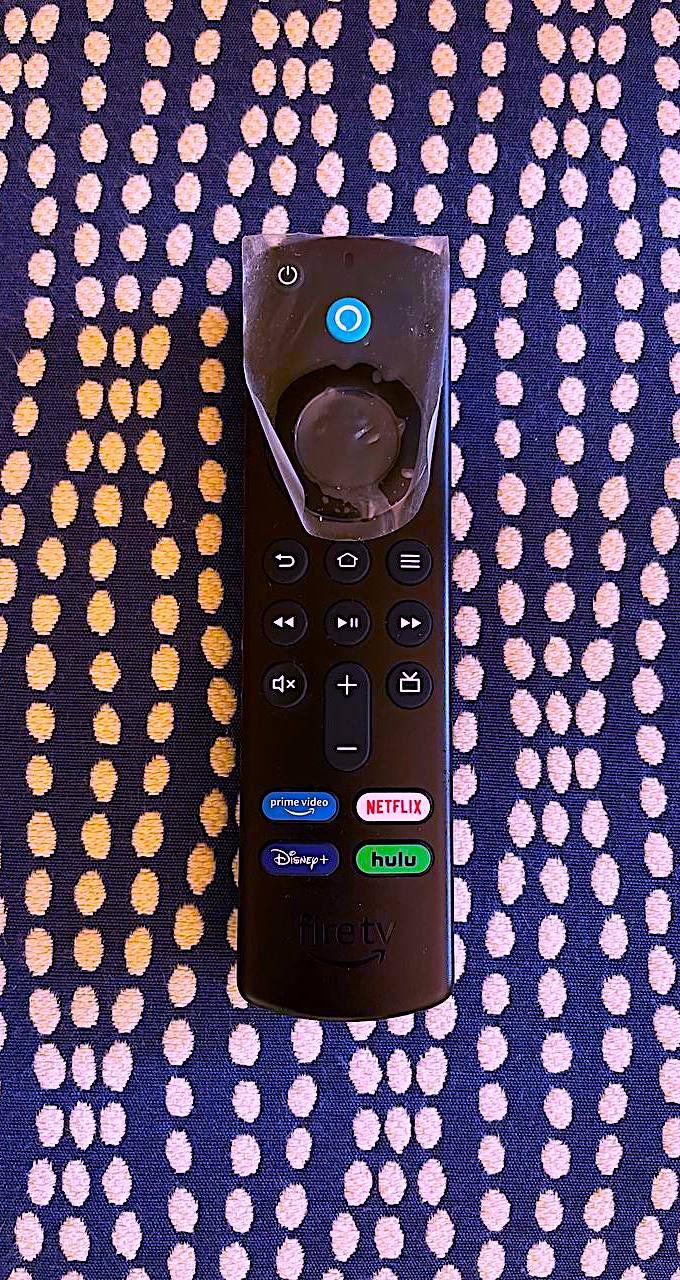
In my home, we use Alexa Echo 10 and FireTV Stick together in the living room for my good old dad.
You’ll need a phone or computer with an internet connection handy. Your FireTV needs to be connected to the internet already too. Once those basics are in place, now let’s login to netflix.
You are the Amazon Account owner, Prime, Alexa, Music and the rest. Your spouse is the Netflix owner. But when you go to watch Netflix in the FireTV, it says you can’t because this device isn’t on the account.