Graycare (graycare.net) is a participant in the Amazon Services LLC Associates Program, an affiliate advertising program designed to provide a means for us to earn fees by linking to Amazon.com and affiliated sites. Learn More

It’s usually embarrassing exposure, or ads that get too personal, that causes the owner of the Amazon Account and Echo Devices to think about deleting their family’s history of activity using Echo devices (along with activity on the Amazon Alexa App).
I verify that deleting many parts of your History can be easily completed in the Amazon Alexa App on your phone (iphone or other smartphone).
You’re going to need your phone (iphone or other smartphone) with the App installed, find a family member who is. Unless the thing you wish to delete is too embarrassing, then please read on.
This is a pretty good guide on how to delete activity from you Echo Devices and Amazon Alexa App history.
I write to family caregivers of the elderly, about how to use Amazon's voice technology, because I am one, and do. So I keep my instructions simple English.
You might be deleting your own oopsie. Or you can protect a senior’s privacy by respectfully deleting the history without reading or listening to it, just press delete, delete, delete.
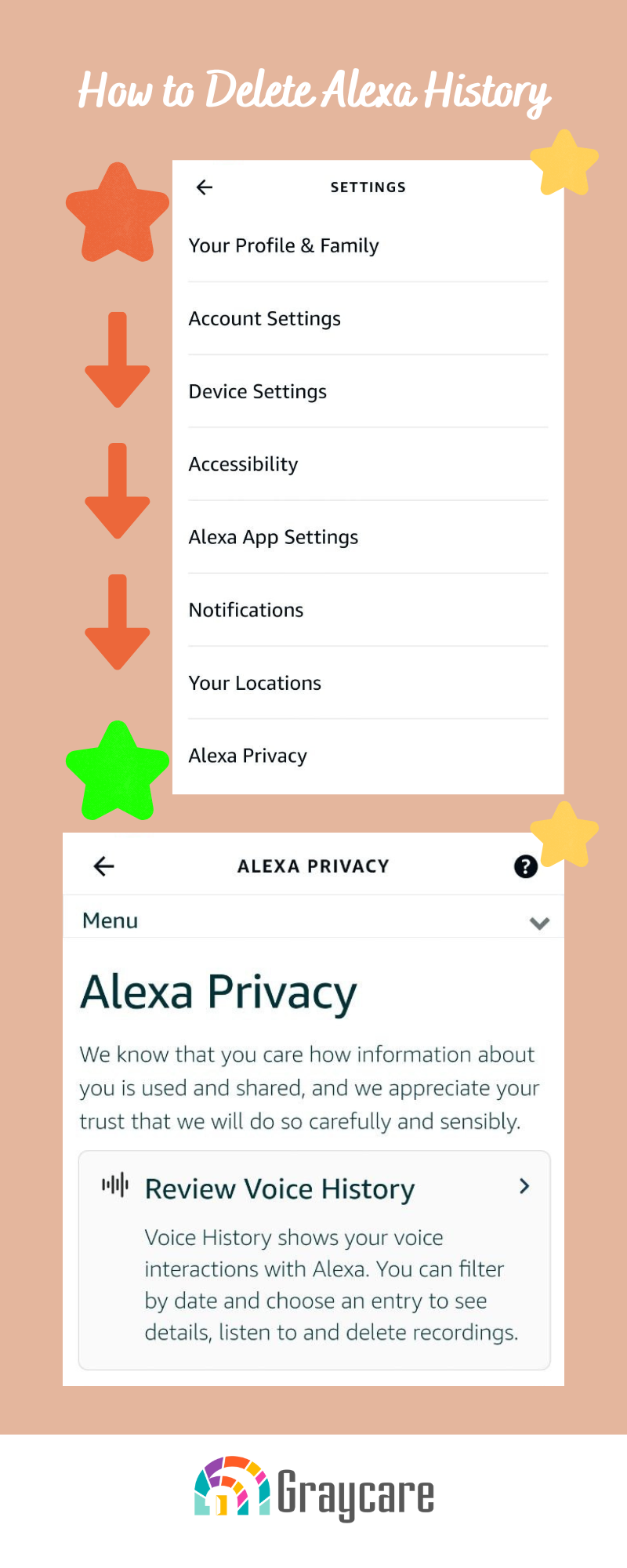
This method is a quick method to effectively delete your Alexa History:
Just go down the line and tap into each thing on the "Alexa Privacy" page, and see what you can do!
Should you delete voice recordings, text messages, and activity history? Beyond those pie-in-the-sky tech terms like “Private”, “Secure” and “Sensitive”, some people think deleting your History makes your Echo run smoother.
The theory is, your History is stored on a hard drive, and the more stuff on the hard drive, the more sluggish Alexa’s response time becomes.
The theory continues, if you delete your History, there’s less on the hard drive, so your Echo Device responds faster and runs smoother.
(I have not tested or measured this theory, but you’re here to delete your History, take note of overall performance “Before vs After Deleting”.)
The common concern with the Privacy of a household managing the care of an elderly family may become an obstacle in that household’s choice try Amazon voice services or not.
Seniors are concerned when they say, “I don’t like technology that listens to me speak.” And here, this is exactly true. If you’re the spouse or adult child trying to convince a senior to delight in Echo's many features for seniors, then the knowledge “Yes, you can delete your History” might convince them to say hello to Alexa and try it out.
Regularly deleting your History ensures sensitive information remains secure, and I’ve shown you today how you can delete your History in the Amazon Alexa App, both “Delete All” and “Delete Automatically at Set Intervals”. You can block certain parts of your voice and text from being sent to Amazon the company too. This all takes place in the smartphone App. Just go to Settings, then "Alexa Privacy", and go down the line to delete data and stay in the know.
Learn what happens, when families get an voice-enabled Echo devices, then aging in place becomes more relaxed, exciting, and connected.
UPDATE: This post was updated in April 2024 to reflect Amazon Alexa technology’s feature which allows you to change the wake word from default “Alexa” to preferred “Echo,” “Amazon,” “Computer,” or “Ziggy”. You can change yours using Amazon official instructions, here.